

Table of Contents
- The Problem: No Native Way to Hide Gutenberg Blocks by Device
- How Flavor Block Visibility Works
- Why Not Just Custom Code in the Theme
- FAQ
- Get the Plugin
When you build WordPress sites long enough, you start running into the same tasks on every project. A small script here, a function in functions.php there — something you copy from one project to the next. One task that comes up constantly: needing to hide Gutenberg blocks on mobile, tablet, or desktop without writing custom CSS every time.
At some point I decided it made sense to package some of these solutions as standalone plugins and publish them. Flavor Block Visibility is the first one — a simple plugin that adds device visibility toggles directly to every block in the Gutenberg editor.
The Problem: No Native Way to Hide Gutenberg Blocks by Device
There’s an obvious gap in Gutenberg that has been surprising developers for years: core blocks have no built-in visibility controls for different devices.
If you want to hide a Gutenberg block on mobile and show it only on desktop — there’s no native way to do that directly in the editor. Your options are writing custom CSS manually or adding a class and defining media queries in the theme. Every time. On every project where this comes up.
And it comes up constantly — a decorative block that looks great on a wide screen but takes up unnecessary space on a phone, a mobile CTA that mirrors a desktop button but with different placement. It’s a small thing, but solving it manually every time gets old.
How Flavor Block Visibility Works
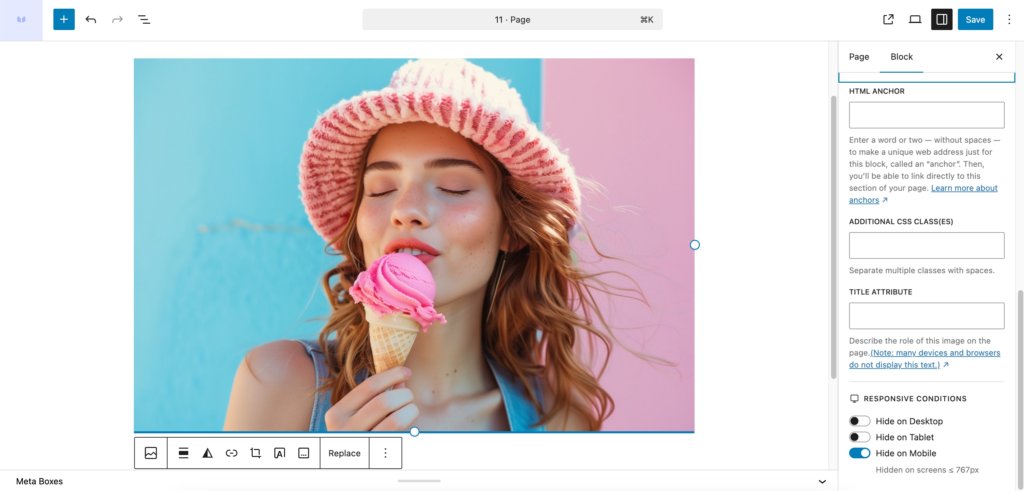
The plugin adds a Responsive Conditions section to the Advanced panel of every block in the editor. Three toggles: Hide on Desktop, Hide on Tablet, Hide on Mobile. Enable the one you need — the block disappears on that device type. That’s it.
One useful detail: when a toggle is active, a hint appears below it showing the exact breakpoint values — for example “Hidden on screens ≤ 767px”. No need to remember anything or check separately.
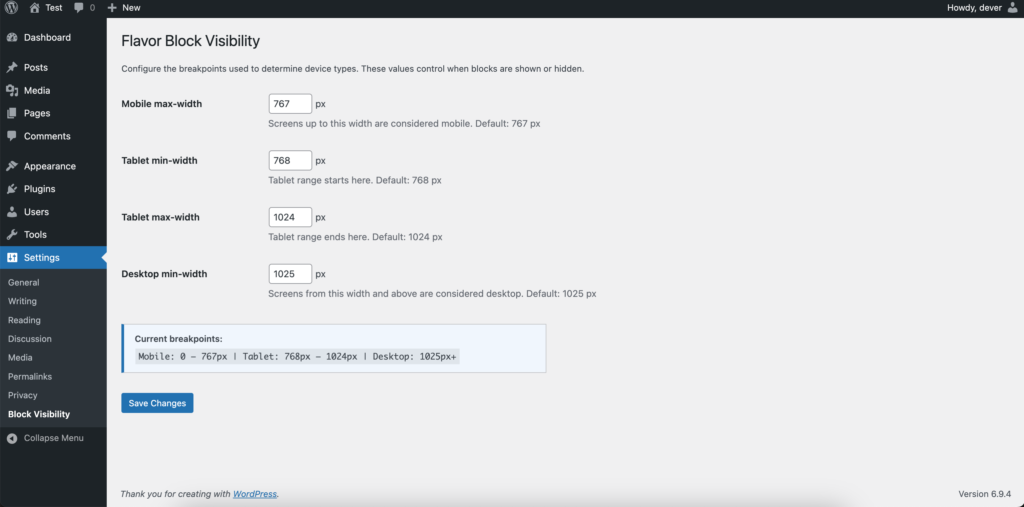
Breakpoints are not hardcoded. There’s a dedicated settings page at Settings → Block Visibility where you can adjust all four values to match your project. The plugin automatically validates the logical order — tablet_min can’t be lower than mobile_max, and so on. Default values are standard: mobile up to 767px, tablet 768–1024px, desktop from 1025px.
Under the hood it’s clean and lightweight: the plugin adds a CSS class to the block and loads the corresponding media queries on the frontend. There’s also a smart optimization — styles are only loaded if the current page actually contains at least one hidden block. If no blocks are hidden on the page, no extra CSS is loaded at all.
Why Not Just Custom Code in the Theme
That’s what I used to do. It works, but functionality baked into a theme lives only in that project — the client switches themes, the site gets handed to another developer, and everything needs to be untangled. A plugin is independent of the theme, installs in under a minute, and updates through the standard WordPress mechanism. And for clients who manage their own site, controls directly in the editor are far more approachable than any custom code.
FAQ
Install Flavor Block Visibility, open any block in the editor, scroll to the Advanced panel, and enable the “Hide on Mobile” toggle. The block will be hidden on all screens up to 767px (or whatever mobile breakpoint you’ve set in the plugin settings). No CSS, no custom code needed.
Yes. The plugin has no theme dependency and doesn’t conflict with theme styles. It works with any theme — classic or block-based.
Minimally. The block always loads — it’s simply hidden via CSS on the target device. On top of that, the CSS is only enqueued if the current page actually contains at least one hidden block. If there are no hidden blocks on the page, the plugin adds zero extra code to the frontend.
Yes. Settings → Block Visibility has a dedicated page where you can change all four values: mobile max-width, tablet min-width, tablet max-width, and desktop min-width. The plugin automatically checks that values are in a logical order — it won’t save an invalid configuration.
Yes. The plugin registers attributes for all registered blocks — including custom blocks from third-party plugins and theme-specific blocks.
No. On uninstall the plugin automatically removes all saved settings from the database.
Get the Plugin
Flavor Block Visibility is free and available in the official WordPress repository.